iPhone / iPad app (preview)
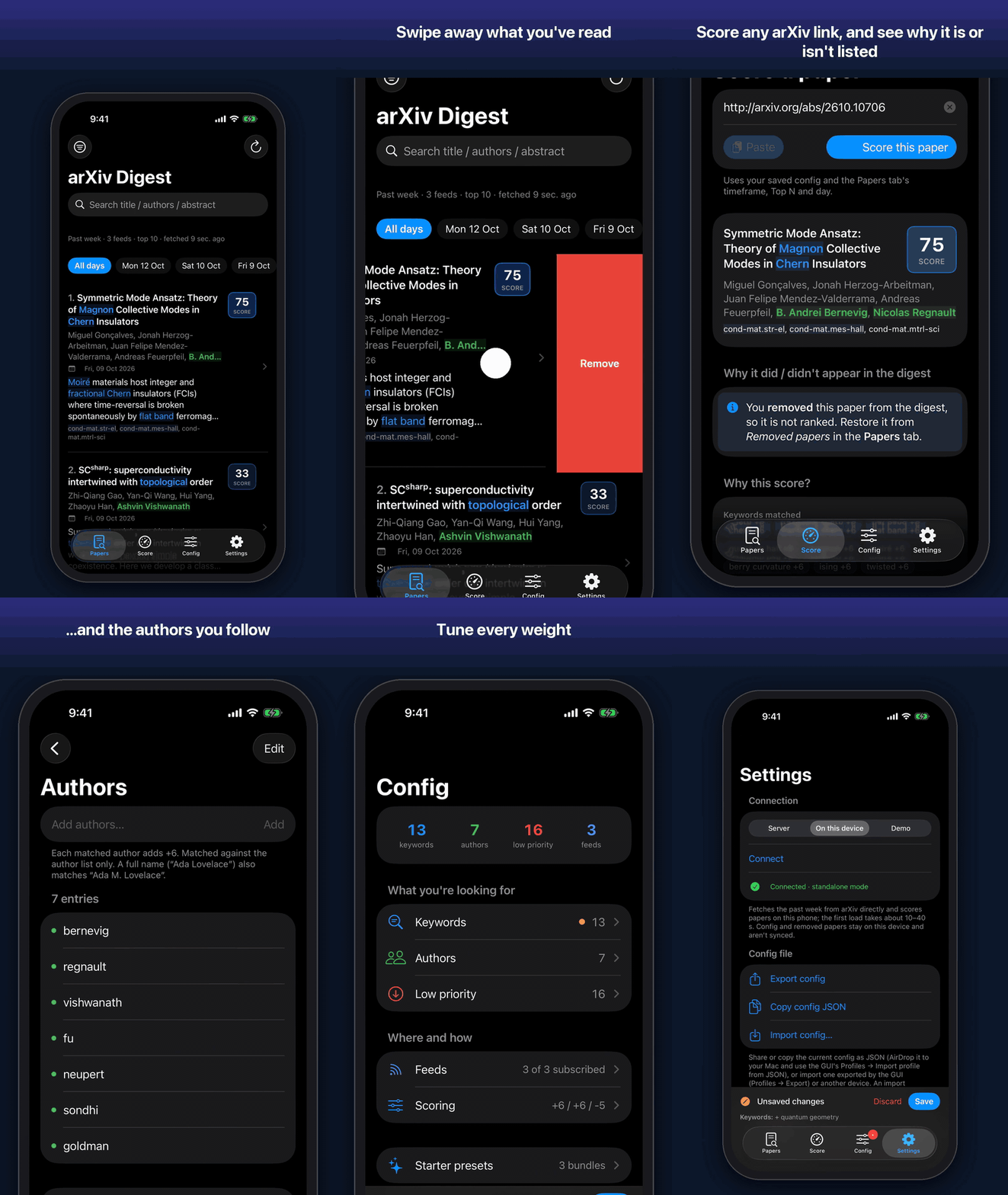
The native app isn't on the App Store yet. Until it is, you can install it on your own iPhone or iPad from source with Xcode, as a development build.
What you need
- A Mac with Xcode (free) and Homebrew.
- An Apple ID. A free account works; the app then stops opening after 7 days until you install it again (a paid Apple Developer account extends this to a year).
- The iPhone/iPad and a USB cable (for the first install).
Install
- Get the code and generate the Xcode project:
- Sign it (once): in Xcode → Settings → Accounts, add your Apple ID.
Then click the blue ArxivDigest project → target ArxivDigestApp →
Signing & Capabilities → tick Automatically manage signing → Team:
your (Personal Team). If Xcode says the bundle identifier is taken, change
it to something unique, e.g.
com.<yourname>.arxivdigest. - Prepare the phone (once): connect it by cable, unlock it and tap Trust This Computer. Turn on Settings → Privacy & Security → Developer Mode; the phone restarts.
- Run: in Xcode's toolbar pick the scheme ArxivDigestApp and your phone as the destination, then press ⌘R.
- Trust the developer (first launch only): iOS refuses to open the app. On the phone go to Settings → General → VPN & Device Management, tap your Apple ID, Trust, and open the app again.
Note
Running xcodegen generate again resets the signing team; set it again in
step 2. If Xcode offers to "update to recommended settings", choose Cancel
(the project file is generated from ios/project.yml).
Use it
The app starts in On this device mode: it fetches arXiv and scores papers on the phone, with no server. Settings → Connection switches modes:
| Mode | When |
|---|---|
| On this device | Default. Works anywhere; settings stay on the phone. |
| Server | Share settings with your Mac (GUI) and other devices. See Sync across devices. |
| Demo | Built-in sample papers, to look around. |
On this device, fetched papers are kept until arXiv announces new ones (Sunday to Thursday, 20:00 US Eastern). Opening the app in the meantime fetches nothing; afterwards it asks arXiv only for the latest days and keeps the rest of the week. Pulling down on the Papers list fetches the latest days the same way, at any time.
To bring your GUI settings over without a server, export a profile in the GUI and open the file on the phone: see Copy the config file.
Web app and iOS app
Both apps offer the same features. Where they look different, it is to suit a phone or a desktop browser.
| Feature | Web app | iOS app |
|---|---|---|
| Ranked digest, day picker, search, Markdown/JSON export | Papers tab | Papers tab |
| Remove and restore papers | Remove on a card, Removed papers | Swipe or long-press, Removed papers |
| Open PDF | Button on each card | Paper page and long-press menu |
| Add a paper's author to highlighted authors | Add author on a card | Authors menu on the paper page |
| Score a paper | Score a paper tab | Score tab |
| Keywords, authors, low-priority terms | Tabs with a table | Config pages with a list |
| Feeds, subscriptions, replacement submissions | Feeds tab and sidebar | Config → Feeds |
| Scoring weights and per-feed bonuses | Scoring tab | Config → Scoring |
| Starter presets | Profiles tab | Config → Starter presets |
| Unsaved changes | Bar listing changes per tab, dot on each tab, ● on unsaved rows | Save bar listing changes per section, dot on each page, ● on unsaved rows, tab badges |
| Highlight colors and toggles | Sidebar → Display | Settings → Display |
| Inline LaTeX | KaTeX | Titles and lists: Unicode with real raised/lowered scripts; paper page abstract: KaTeX |
| Share settings between devices | Sidebar → Sync with server | Settings → Connection → Server |
| Copy or download the working config as JSON | Profiles → Download / Copy working config (JSON) | Settings → Config file → Export config / Copy config JSON |
Intended differences
| Web app | iOS app | Why |
|---|---|---|
| Named profiles (save, load, export, import) | One config; Config file export/import | A phone needs one working config; files move it between devices |
| A tab's Save writes only that tab | One Save for all changes | One Save fits a phone better |
| Save to Zotero through the local Zotero app | Through the digest server's Zotero key, else Share to Zotero | Zotero's local API exists only on the computer |
| Timeframe and Top N count as unsaved until Save | Saved as soon as you change them on the Papers tab | The Papers toolbar on iOS applies them at once |
Update or renew
Set the signing team again (step 2), connect the phone and press ⌘R. Do the same every 7 days on a free Apple ID; your config and removed papers are kept.